전체 · 인포그래픽/안내 · 매장 안내문
024와이파이 비밀번호 안내판 만들기
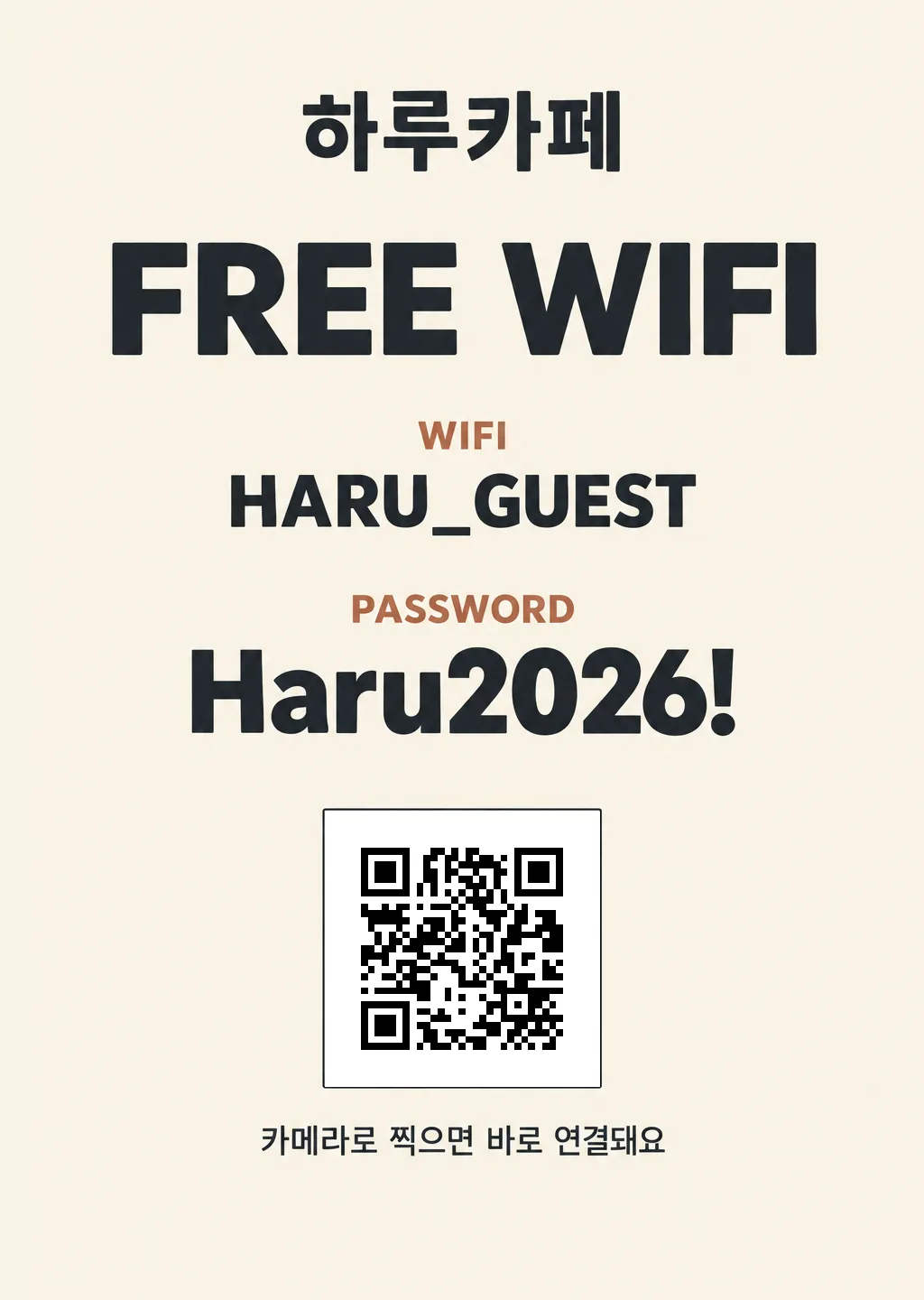
가게 이름과 와이파이 이름, 비밀번호만 적으면 멀리서도 또렷하게 읽히는 매장용 안내판
칸 채우기
- 1칸을 채워요
- 2복사 버튼을 눌러요
- 3GPT 채팅창에 붙여넣어요
- 4제품·인물 사진을 쓰려면 사진과 프롬프트를 둘 다 넣은 뒤에 보내요 선택
프롬프트 원문 보기 4,312자
Complete these three steps in order:
1. Generate the flat sign artwork with a white square reserved for the QR code. Draw only a thin border; leave the entire inside completely blank. Do not draw QR modules or a QR-like pattern in the image.
2. Run Python to generate a real Wi-Fi QR from the supplied network name and password. Use WPA, error correction M or higher, and a four-module quiet zone.
3. Use Python to paste that QR into the blank square and return the completed PNG. If possible, decode the QR from the completed PNG, compare it with the intended content, and report the result in one line. If code execution is unavailable, return the blank-square artwork from step 1 and say clearly that it has no QR.

Start with step 1 now. Do not explain or ask questions before generating the image. Continue to steps 2 and 3 when Python is available.
Output size 2480x3508 pixels, A4 portrait, 300dpi, print-ready poster.

[Purpose and layout for step 1]
Create a flat Korean Wi-Fi password sign for a shop, ready to print at A4. No wall, frame, hands, phone, room, or perspective mockup. Paint the background to all edges and keep text within 8% safe margins. Use a simple vertical layout. The exact password must be the most legible, prominent information, and the network name second. Keep all supplied characters exactly as written, including case, numbers, underscores, spaces, and punctuation. Use a font that clearly distinguishes O/0, I/l/1, S/5, and B/8.

At 8-16% height, show the shop name "【가게 이름】". At 20-28%, show the large English heading "FREE WIFI". At 33-44%, show the small label "WIFI" with the exact network name "【와이파이 이름】" directly below it. At 47-58%, show the small label "PASSWORD" with the exact password "【비밀번호】" directly below it as the largest and boldest value. Keep the password on one line, adjusting only its font size if needed. The only visible text is the shop name, FREE WIFI, the two English field labels, the two supplied values, and optionally the small line "카메라로 찍으면 바로 연결돼요" below the QR. Keep the heading and field labels in English exactly as specified.

Directly below the password, center one square QR placeholder on the canvas's vertical axis. Make the square approximately 30% of the canvas width, with generous clear space above and below it; aim for its top around 62-64% of the canvas height while keeping the square and any caption within the safe margins. Do not place it in a corner or beside the password. Make its inside pure white, completely blank, with a simple thin border. Do not place any text, texture, decoration, dots, matrix, scan icon, or image-generated QR mark inside. Keep the border clear of the password and all other text. If space permits, put one small centered line "카메라로 찍으면 바로 연결돼요" below the square, outside its border. This is the only empty box on the sign.

[Style]
Use the selected feeling "【느낌】" only for the background, typography, and sparse edge accents. "깔끔": pale warm neutral, deep charcoal sans-serif, one restrained accent. "나무": light low-contrast wood texture, with a broad quiet area behind all text. "손글씨": warm matte paper and friendly headings, but highly legible technical lettering for the credentials. "귀엽게": soft pastel and a few small original edge doodles, with crisp credentials. Keep the surface flat, matte, and high contrast. Never print the feeling name. Avoid logos, mascots, trademarks, watermarks, decorative objects over text, and any extra wording.

[Real QR for steps 2-3]
In Python, set ssid to "【와이파이 이름】" and password to "【비밀번호】". In each value, prefix every literal backslash, semicolon, comma, colon, and double quote with one backslash; escape existing backslashes first. Construct exactly: WIFI:T:WPA;S:<escaped ssid>;P:<escaped password>;;. The angle-bracketed parts here mean the escaped values, not literal angle brackets. Use a QR library such as qrcode with ERROR_CORRECT_M or higher, border=4 modules, dark modules on pure white, and no logo or styling. Use Pillow to fit the whole QR, including its quiet zone, within the reserved white square without covering its border or any text. Save and return the composited PNG. If OpenCV or pyzbar is available, decode the QR from this finished PNG and compare its full text with the payload. Report the result in one line. Never claim a successful scan unless the finished PNG was actually decoded.
이 카드도 많이 사용해요
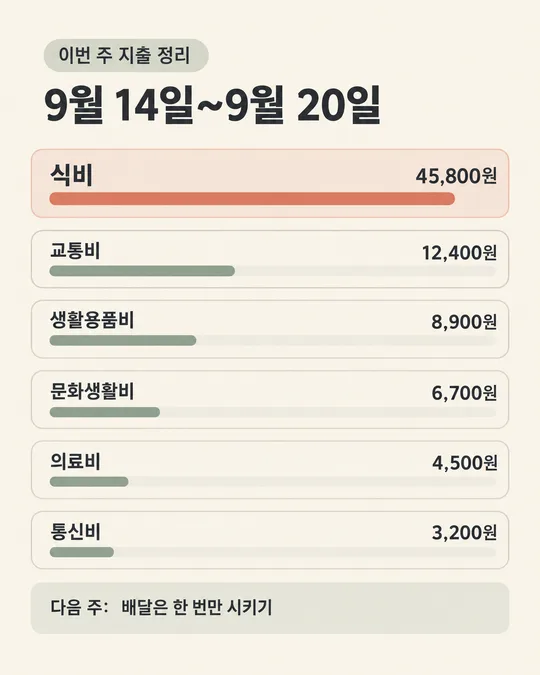
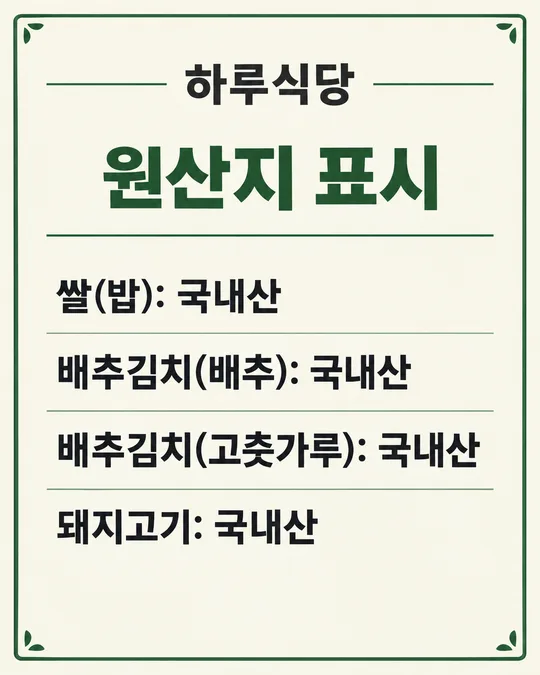
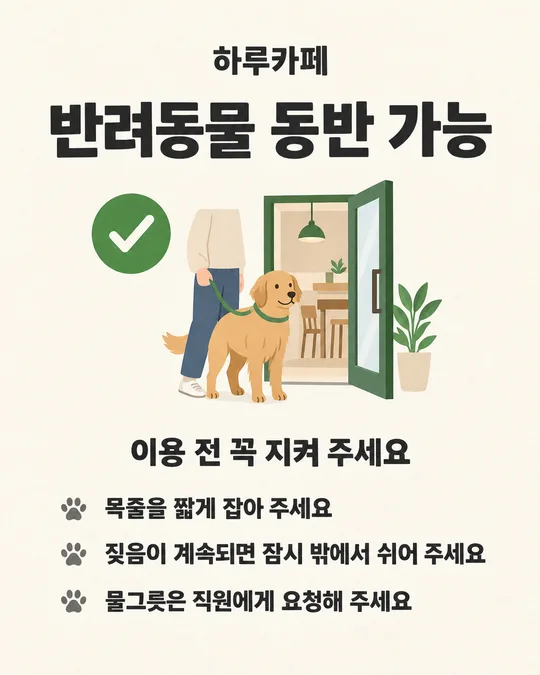
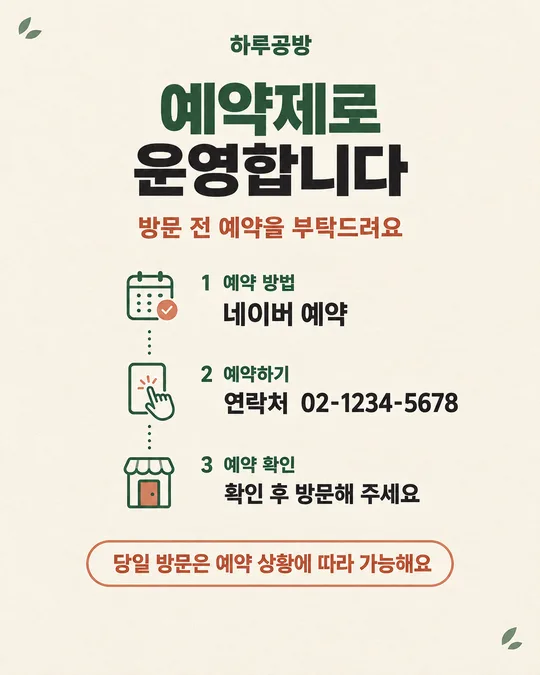
쓰는 법 · 자주 묻는 것
이런 때 쓰세요
손님이 와이파이 이름이나 비밀번호를 반복해서 물어보는 카페, 식당, 미용실, 공방, 대기실에 붙이는 안내판이에요. 가게 이름과 접속 정보를 넣으면 QR이 포함된 A4 안내판 PNG가 나옵니다. 비밀번호도 멀리서 읽기 쉽게 크게 보여 줍니다.
GPT가 먼저 QR 자리만 비운 그림을 만들고, 파이썬 코드로 실제 와이파이 QR을 생성해 붙입니다. 손님은 QR을 찍거나 이름과 비밀번호를 직접 입력할 수 있어요.
칸 채우는 법
가게 이름에는 간판에 쓰는 이름을, 와이파이 이름에는 휴대전화의 네트워크 목록에 실제로 뜨는 이름을 적으세요. 비밀번호는 공유기 설정에 있는 값을 그대로 옮기세요. 대소문자, 띄어쓰기, 밑줄, 하이픈, 느낌표 같은 기호도 빠짐없이 입력하세요.
느낌은 깔끔, 나무, 손글씨, 귀엽게 중 하나를 고르세요. 네 칸을 채운 뒤 프롬프트를 이미지 만들기와 코드 실행이 가능한 GPT 대화에 붙여 넣으세요. 무료 계정에서 코드 실행이 막히면 QR 없이 안내판만 사용하면 됩니다.
그림이 나오면 꼭 볼 것
와이파이 이름과 비밀번호를 한 글자씩 대조하세요. 특히 숫자 0과 대문자 O, 숫자 1과 소문자 l·대문자 I, 숫자 5와 대문자 S가 구별되는지 보세요. 제목은 「FREE WIFI」, 작은 표기는 「WIFI」와 「PASSWORD」인지 확인하세요.
인쇄 전에 완성 PNG의 QR을 휴대전화 두 대로 찍어 실제 연결되는지 확인하세요. 저장된 접속 정보가 없는 기기도 써 보세요. 시험 출력물을 붙일 자리에서 읽어 보고, 비밀번호나 QR이 틀리면 수정한 뒤 다시 시험하세요.
틀린 곳 고치는 법
그림의 글자가 틀렸다면 같은 대화에서 정확한 문구를 알려 주세요. 예를 들어 「비밀번호를 'Haru2026!'로 정확히 고쳐 주세요. 대문자 H, 소문자 aru, 숫자 2026, 느낌표 순서입니다」라고 요청하세요. 그림을 다시 만들었다면 QR도 새 그림에 다시 붙이고 완성본을 다시 확인해야 합니다. 접속 정보가 바뀌었다면 QR도 새 값으로 다시 만드세요.
자주 묻는 것
- QR코드도 같이 만들 수 있나요? 네. GPT가 그림에는 빈 자리만 만들고 파이썬으로 WPA 와이파이 QR을 생성해 붙입니다. 인쇄 전에 휴대전화 두 대로 실제 연결되는지 확인하세요.
- 비밀번호를 크게 쓰면 안전한가요? 손님에게 공개할 게스트용 와이파이에만 쓰세요. 매장 업무 기기나 결제 기기가 연결된 내부 네트워크 정보는 공개 안내판에 적지 마세요.
- 0인지 O인지 계속 헷갈려요. 그림에서 두 글자가 확실히 다르게 보이도록 다시 요청하고, 가능하면 실제 비밀번호도 손님이 구별하기 쉬운 조합으로 변경하세요. 변경했다면 공유기와 안내판의 값을 함께 바꾸세요.
- 비밀번호가 너무 길어 두 줄이 됐어요. 한 줄 안에서 글자 크기만 조금 줄이고 모든 문자를 유지해 달라고 요청하세요.
- 무료 GPT로도 되나요? 이미지 만들기는 계정의 이용 가능 여부에 따릅니다. 코드 실행이 막히면 QR 없이 안내판만 사용하세요.