All · Infographics & guides · Store notices
087Sold-Out Item Notice
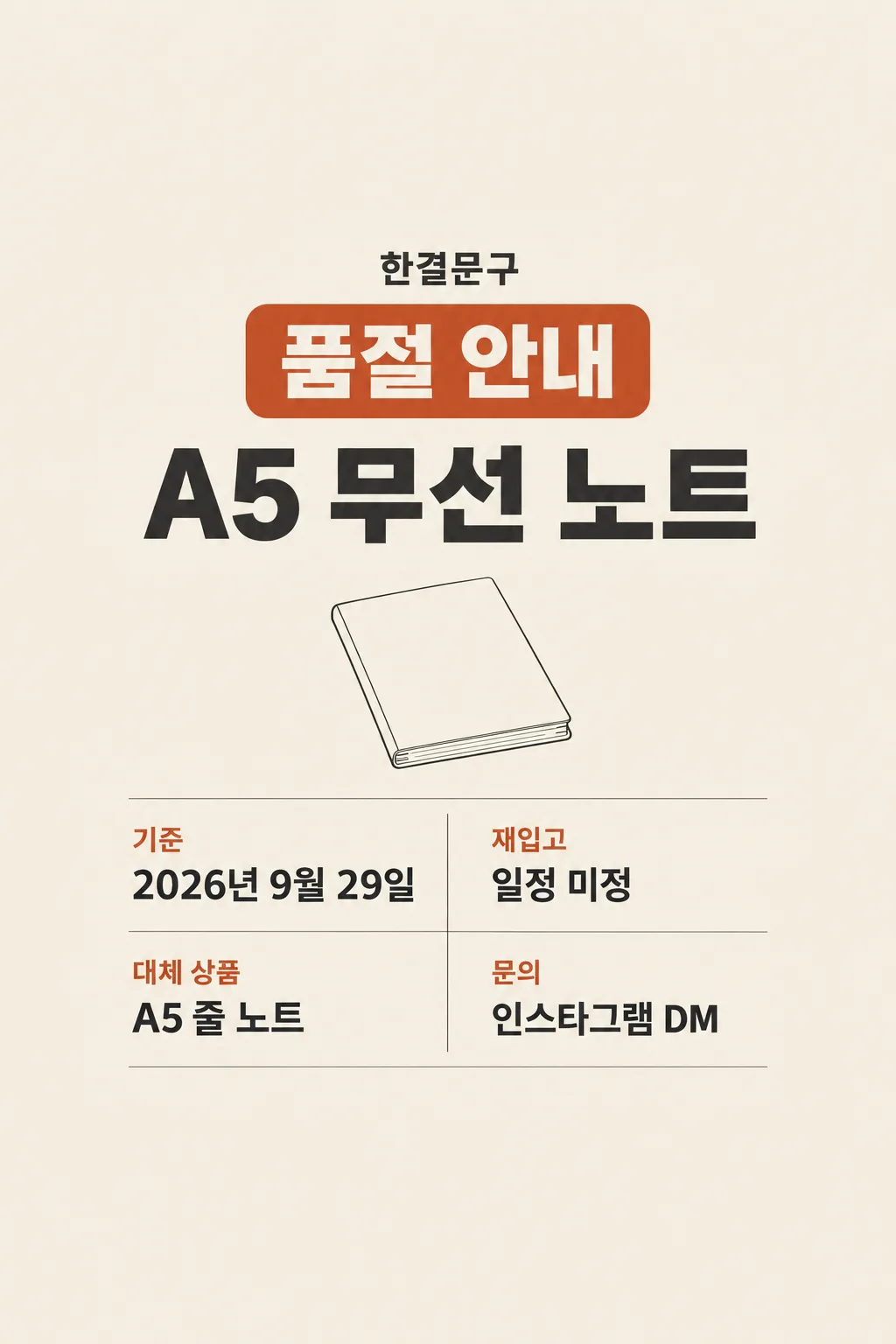
Tell customers which item is unavailable and what the shop actually knows about restocking.
Fill in the fields
- 1Fill in the fields
- 2Copy the prompt
- 3Paste it into a GPT chat
- 4To use a photo, upload it together with the prompt Optional
Full prompt 1,152 characters
Generate exactly ONE finished vertical sold-out item notice now. Draw it directly, with no code, extra slide, crop guide or follow-up request.
Output size 2480x3508 pixels, A4 portrait, 300dpi, print-ready poster.
Use only the shop owner's real facts: shop "【Shop name】"; unavailable item "【Sold-out item】"; status confirmed on "【Status date】"; actual restock status "【Restock status】". Optional actual in-stock alternative: "【Actual alternative】". Optional real contact route: "【Contact route】". Omit a blank optional line entirely.
Make a clear full-bleed 2:3 shop sign with a large "Sold Out" heading, the item name even larger, a visible "As of 【Status date】" line, and a precise restock-status line. If the date is unknown, say it is unknown; if restocking is only expected, retain that qualification. Show an alternative or contact method only if supplied. Use calm off-white, charcoal and muted rust orange, with a simple unbranded shelf or generic category icon. Keep text readable in a feed and on a shelf, and essential lettering away from the top 12% and bottom 15%. Do not invent a date, stock count, price, order route, discount, product package, logo or food appearance. Return one finished image only.
You may also like
How to use it · FAQ
Use the date the shop confirmed the stock status. Update the image when stock changes.