All · Infographics & guides · Store notices
379Kiosk Ordering Instructions
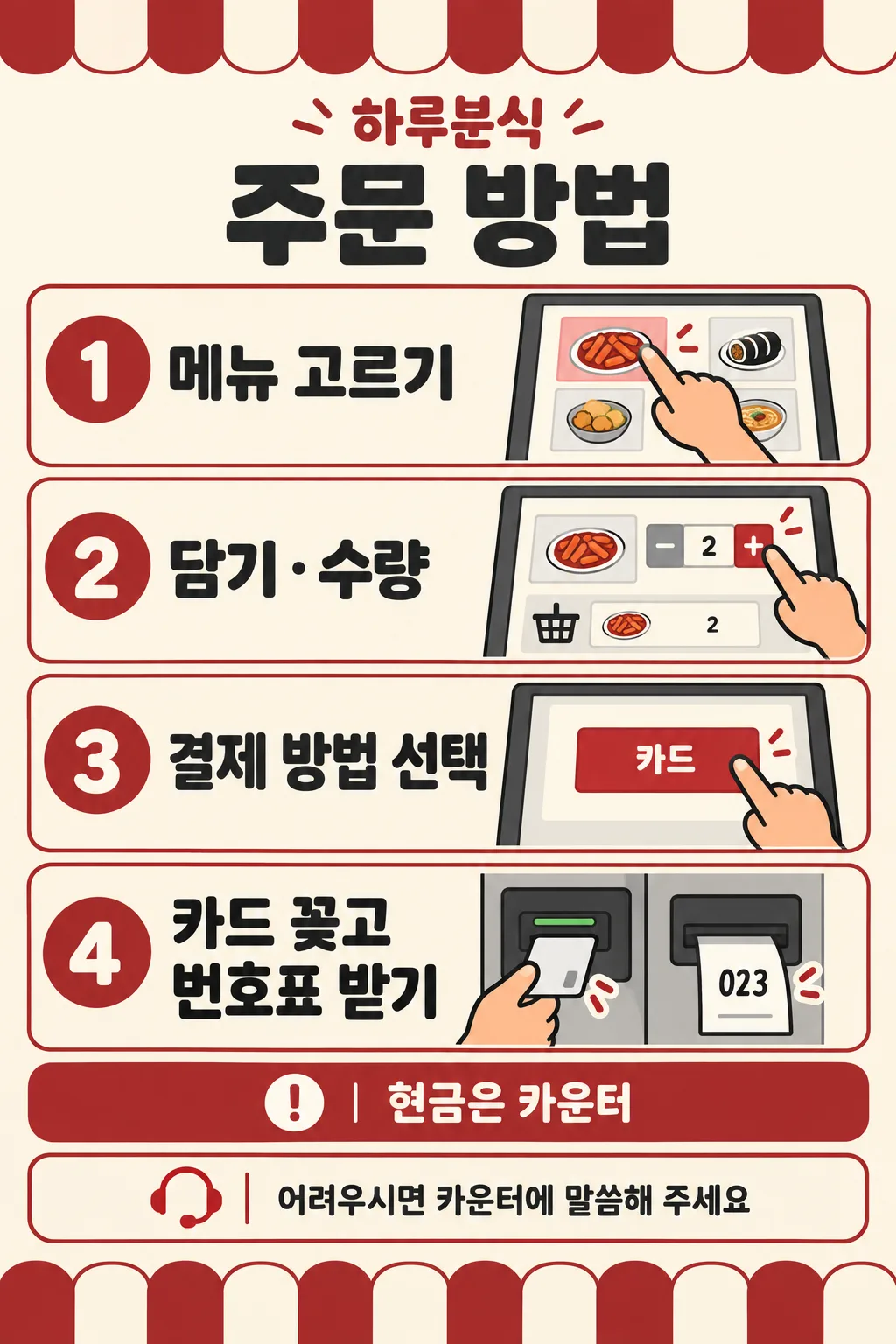
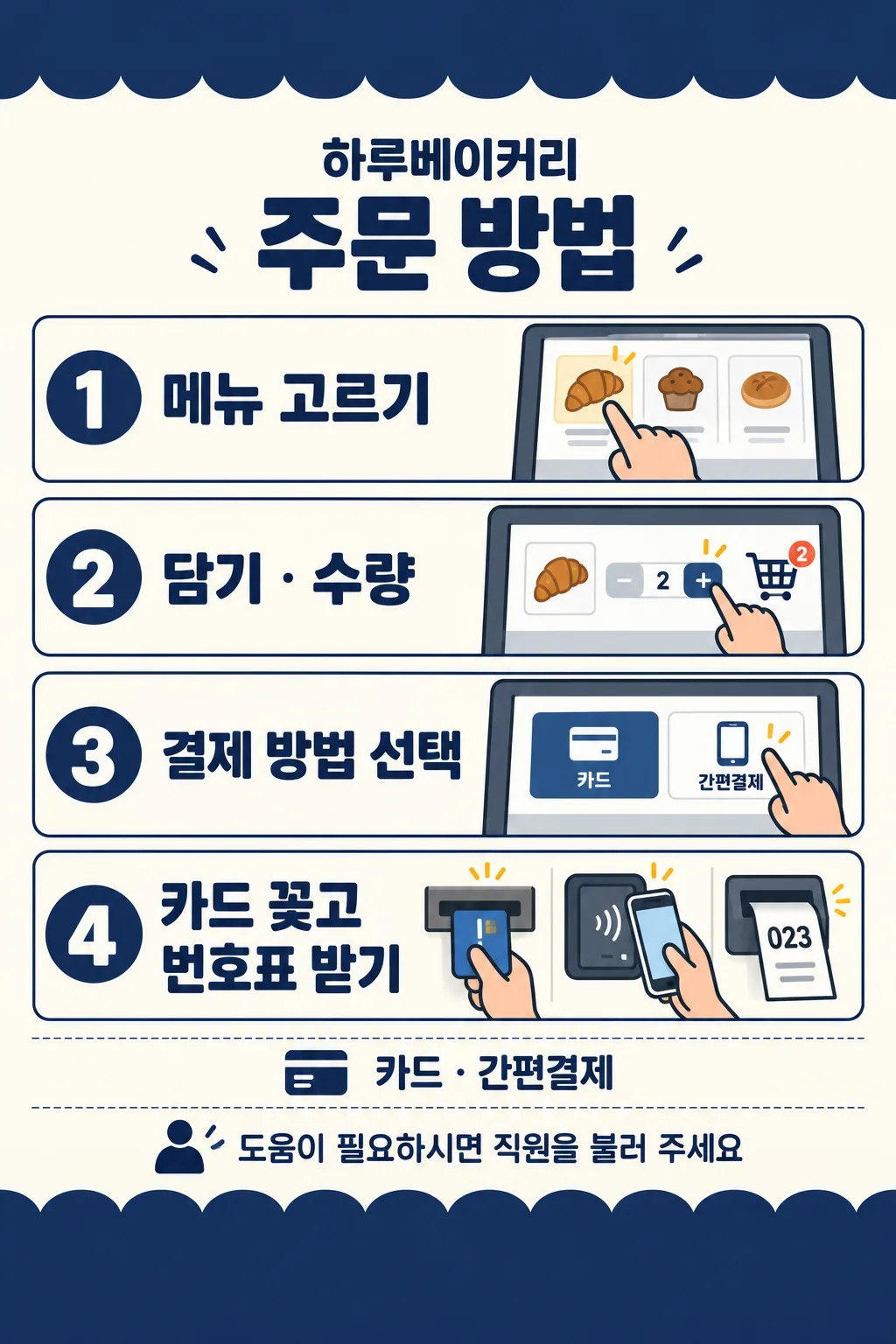
Four large steps and clear hand-and-screen drawings explain ordering, payment and ticket collection.
ChatGPT Free OK
Fill in the fields
- 1Fill in the fields
- 2Copy the prompt
- 3Paste it into a GPT chat
- 4Send it as is and you get an image like the thumbnail example
- 5Attach a real photo that fits the card and it is used in the result: a background photo for background cards, a person or food photo for those cards Optional
Full prompt 4,125 characters
Generate this image now. Draw it directly, do not explain or ask questions.
Create ONE finished flat kiosk ordering sign. Output size 2480x3508 pixels, A4 portrait, 300dpi, print-ready poster. Use the selected canvas ratio. Fill the canvas edge to edge with warm ivory, restrained accent bands and clean flat instructional illustrations. No wall, photographed paper, mockup or perspective. Bold dark sans lettering, large numbered accent circles, warm peach hands and consistent thick outlines. Keep every important word within 12%-85% height and 5% side margins. Top and bottom contain only simple awning-like ornaments. Put shop name and title at 13%-23%, four compact horizontal rows at 25%-72%, payment note at 74%-78%, help footer at 80%-84%. Each row: numbered circle left, large instruction center-left, substantial fictional screen and hand right. Wrap fourth instruction into two lines. Row1 finger touching a generic food tile; row2 finger pressing + next to a basket and quantity 2; row3 finger touching a payment button; row4 hand inserting an unbranded card into a dedicated card slot, with a numbered slip emerging from a SEPARATE printer. Never insert card in receipt slot. Use only original simplified fictional UI, no actual manufacturer design, logos or payment brands. Screen numbers, plus/minus and ticket 023 are permitted, no invented prices or menu names.
Resolve payment mode before drawing. First supplied option = cards only, row3 only one card button. Second option = card and mobile payment, row3 two buttons with the supplied generic card/mobile labels; row4 also a small generic phone tapping a separate reader, while retaining card insertion and order slip. Third option = cash at counter, kiosk screen only card button; payment note explicitly routes cash users to counter. Never illustrate cash insertion into kiosk. A custom payment note is copied exactly; show only card button unless it explicitly allows mobile payment. Do not invent supported payment methods. Empty payment defaults to first option. Empty shop removes its label and reflows header. Empty help uses supplied default help. If help is the localized automatic-choice option, use that same default. Custom help replaces default entirely; never print both.
Color choices in order: forest green/ivory, navy/ivory, brick red/ivory, charcoal/white. Empty color uses forest green/ivory. Same flat illustration style and layout for every choice. Color field never prints.
Print ONLY supplied shop, title, four instructions with numbers 1-4, resolved payment note, resolved help and required generic payment screen labels. Copy every character exactly. Check text character by character before finishing. No verification notes, watermark or sample label.
SHOP: "【Shop name】"
PAYMENT: "【Payment methods】"
HELP: "【Help message】"
COLOR: "【Color】"
Output language: en. Title: How to order. Steps in order: Choose your items / Add · Set quantity / Choose payment method / Insert card · Collect order ticket.
Payment options in order: Cards only / Card · Mobile payment / Cash at the counter. Screen labels: Card / Mobile payment. Default help: Please ask at the counter if you need help.. Automatic help choice: Choose for me.
Final layout rule: use a thick plain accent TOP band occupying 12% height and BOTTOM band occupying 15% height, both entirely blank. All shop, heading, four slim rows, payment and help must fit inside the central 73%. Shrink illustrations to fit. Resolve selected payment before drawing; the choice list is not a list of supported methods. Print the payment input exactly, with no added restrictions or words. First or third payment option absolutely forbids mobile-payment buttons or phone icons. Second option requires the phone-and-reader illustration in row4 alongside card insertion and order slip.

[Final output format]
Output size 2480x3508 pixels, A4 portrait, 300dpi, print-ready poster.
This selected output format takes priority over any fixed canvas size or aspect ratio elsewhere in this template. Adapt the composition, text zones and margins to the selected canvas without stretching or cropping essential content. Device safe areas apply only when a device is selected. Never print these format instructions on the image.
How did it turn out?
You may also like
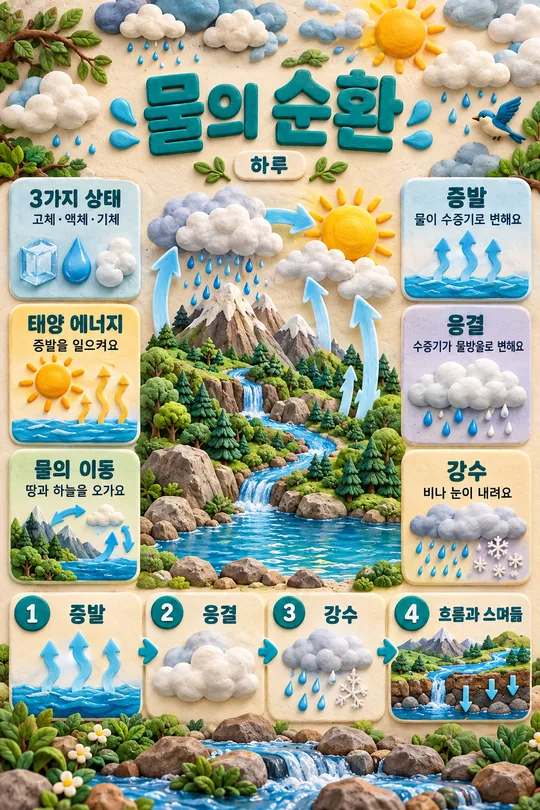
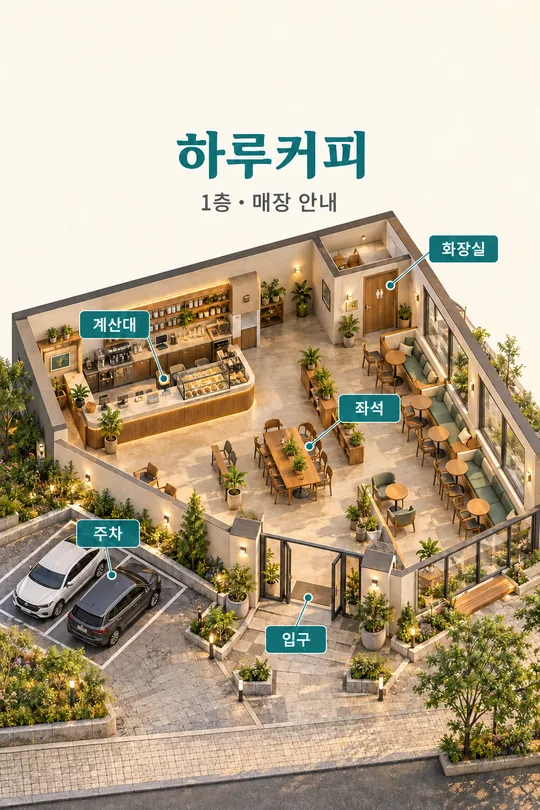
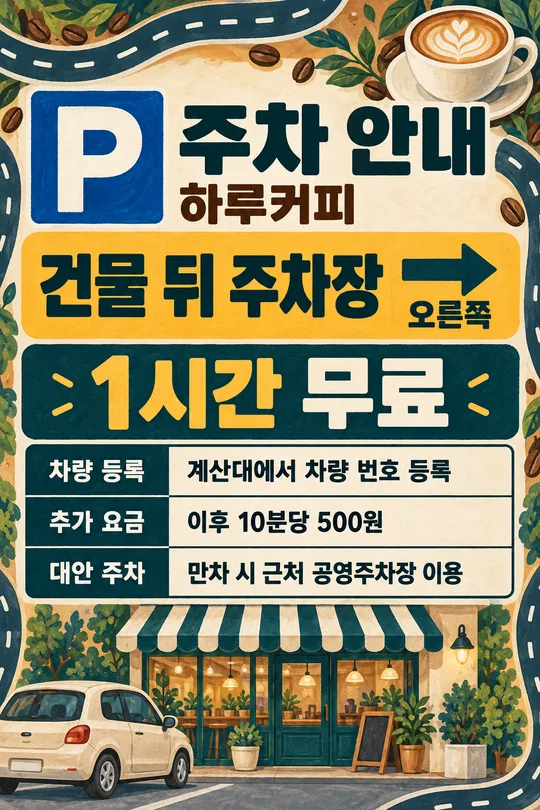
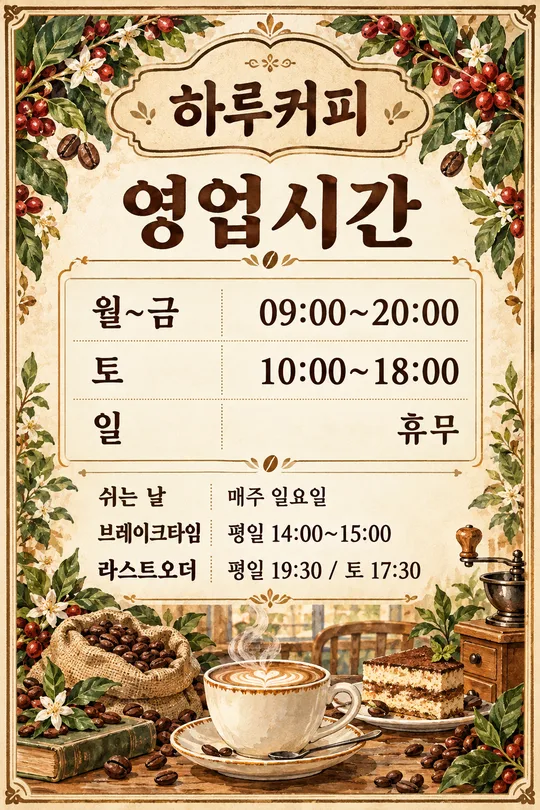
How to use it · FAQ
Place this single illustrated sign beside a kiosk. Four large numbered instructions and distinct finger-and-screen drawings guide first-time visitors from menu selection to collecting an order ticket. Paste the completed prompt once into an image AI; no photo is needed. The finished image is a flat print, with bold lettering and a consistent clean illustration style.
There is 1 required field: Payment methods. Use the real storefront name, such as Haru Coffee or Haru Bakery; an empty Shop name removes the name line. Cards only shows one card button. Card · Mobile payment shows two generic payment buttons and a phone tapping a reader in the last drawing. Cash at the counter keeps only card payment on the kiosk and directs cash customers to staff in the payment note. It never depicts cash insertion into the machine. Custom payment text prints exactly and does not invent supported methods. Empty payment defaults to Cards only.
Choose one of the two Help message suggestions, Choose for me, or write your own. Blank and Choose for me both use Please ask at the counter if you need help. A custom sentence replaces that message completely. Four accent choices are green, navy, brick red with ivory, or black with white. Blank color uses green and ivory. Colors change accents, while layout and illustration style stay fixed.
Before posting, check all four instructions, shop name, payment note and help message character by character. Confirm that the card slot and order-ticket printer are separate and that the illustrated payment buttons match your machine. This sign is designed for kiosks that accept inserted cards and issue order tickets. Do not post it unchanged on tap-only machines or machines without order tickets. The card insertion instruction applies to card users; mobile-payment users follow the phone-and-reader drawing. The four steps are fixed, so machines with a different ordering sequence need another sign.
Choose A4 in the shared ratio control for a portrait print request. The cover and gallery use 2:3, which differs from A4; preserve the image ratio when printing. Test readability at the actual viewing distance. If text is incorrect, check the input and regenerate before posting. You may leave the shop name blank for a general sign. Only the help sentence is customizable; the four step labels remain fixed. English and Japanese retain the same four fields, three payment choices, three help suggestions, four colors and blank-field behavior. The gallery demonstrates Korean output; this prompt prints English.